

We are excited to announce a major improvement in creating large wholesale orders on creativeteaching.com! Gone are the days of entering each product line by line! You can now upload a list of products and add them to your cart in just 2 clicks. We've also improved adding individual products by SKU if you choose to do so. Give it a try for yourself now, or keep reading for a quick how-to .
Overview
Our bulk order page allows users to add multiple products to their cart at once through the use of a spreadsheet file upload or adding individual products and their quantities. Dealer discounts (if applicable) are displayed upon import, but if there is an ongoing promo that includes further discounts, they will be applied after the imported products have been added to the cart.
Getting Started
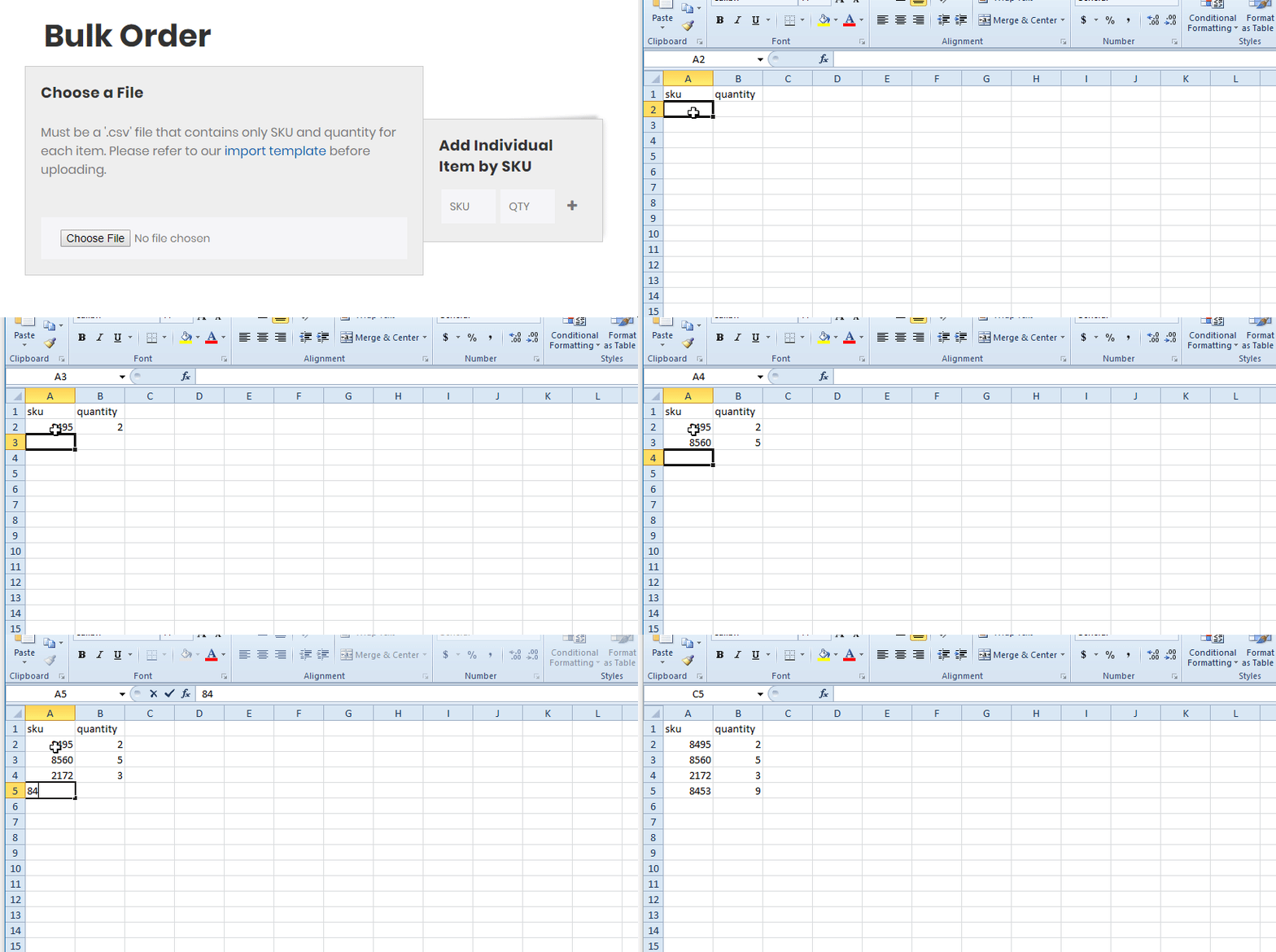
To start, download the import template from the Bulk Order page to your computer and open it with Microsoft Excel or a similar spreadsheet application. You can also start from a blank spreadsheet, or work off an existing list. Just make sure you only have 2 columns: SKU (column A) and Quantity (column B):
Preparing Your File
Our uploader takes .csv (comma seperated values) files. Whether you're working off of our import template, or an existing document, after edits are made, click File > Save As and under save as type, select CSV (Comma delimited)(*.csv): 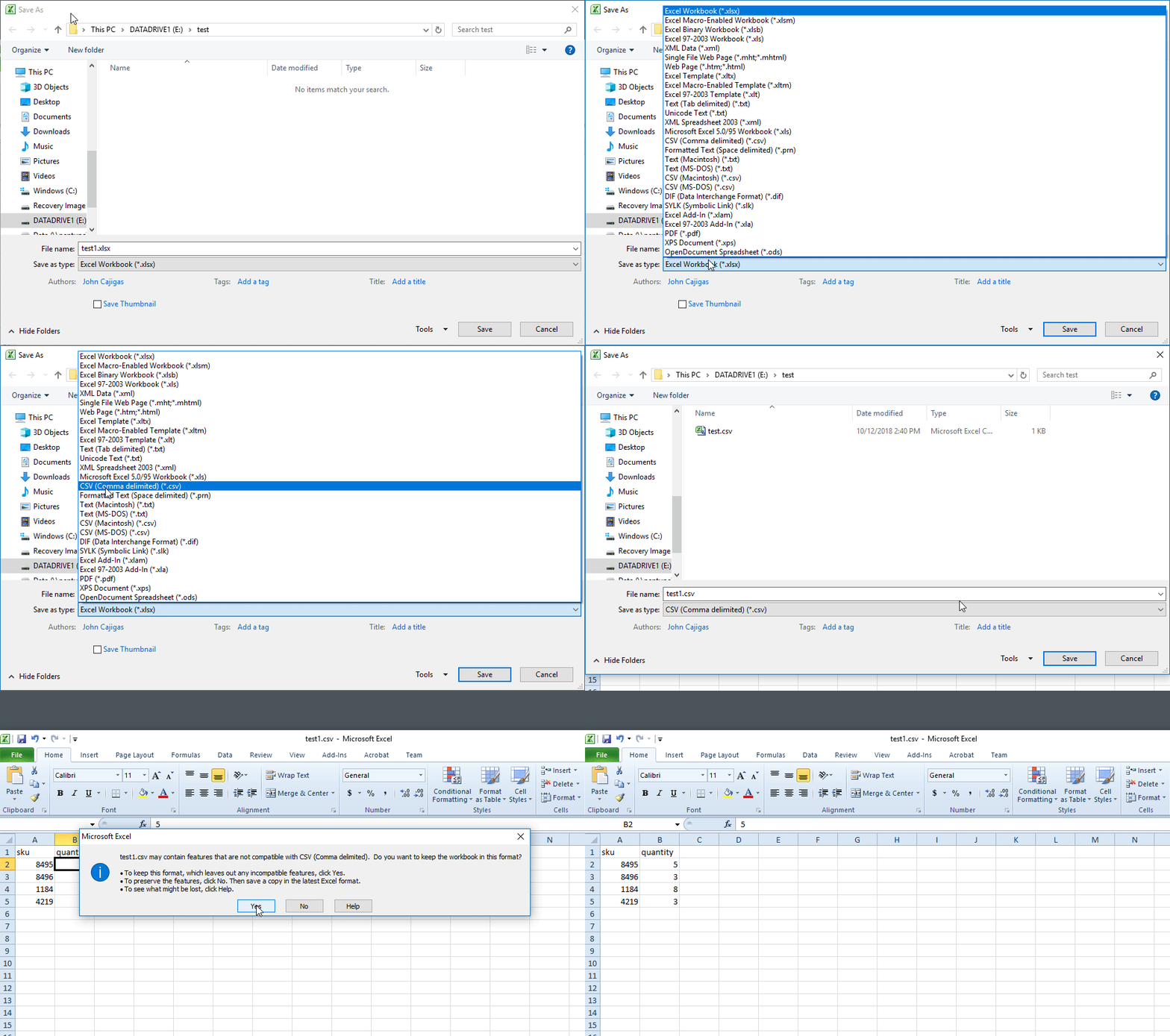
Importing Line-Items
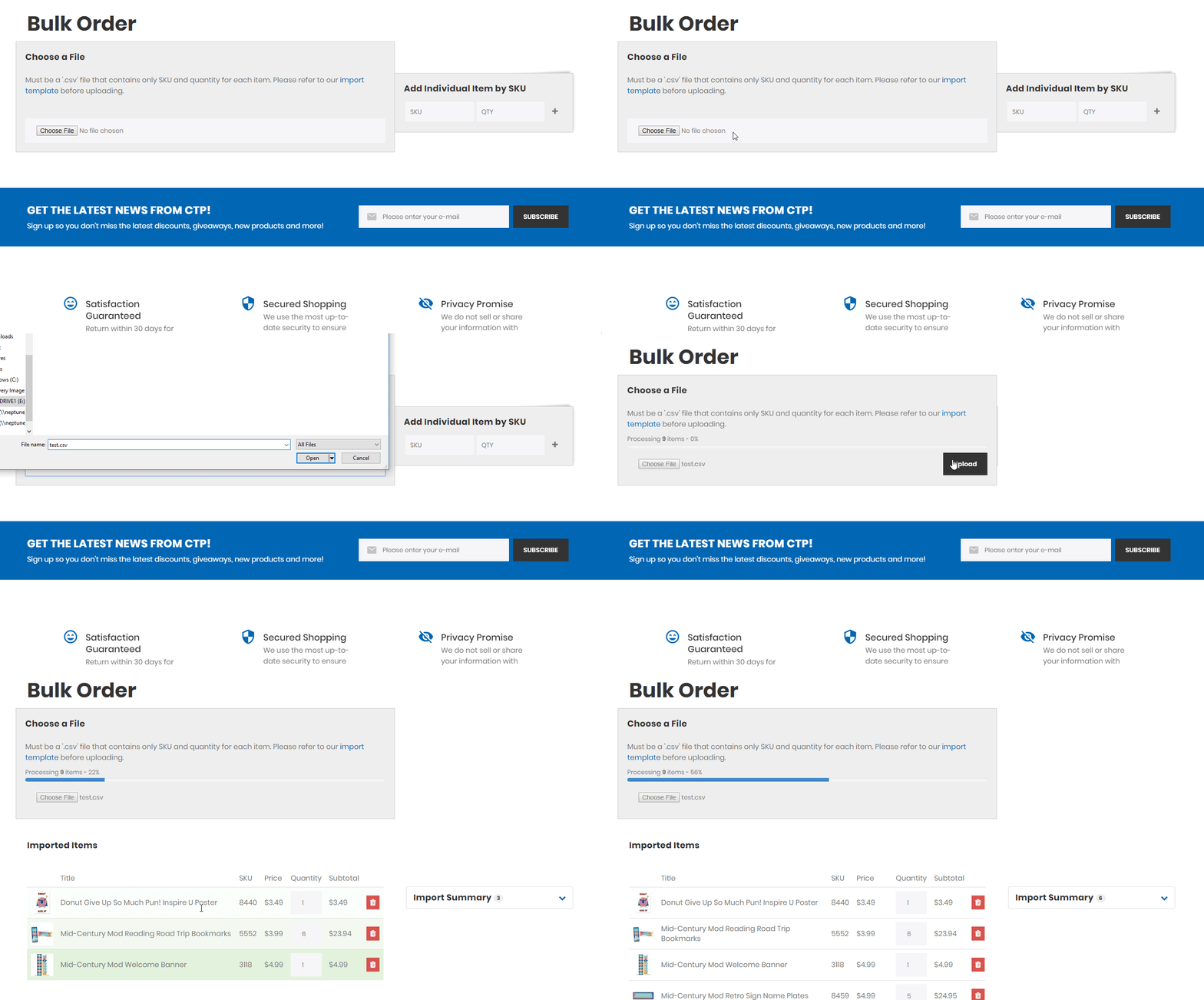
Once you have your file, you can begin the upload procedure. Select "Choose File" on the bulk order page, navigate to your file and select it. Finally, click "Upload" to begin:
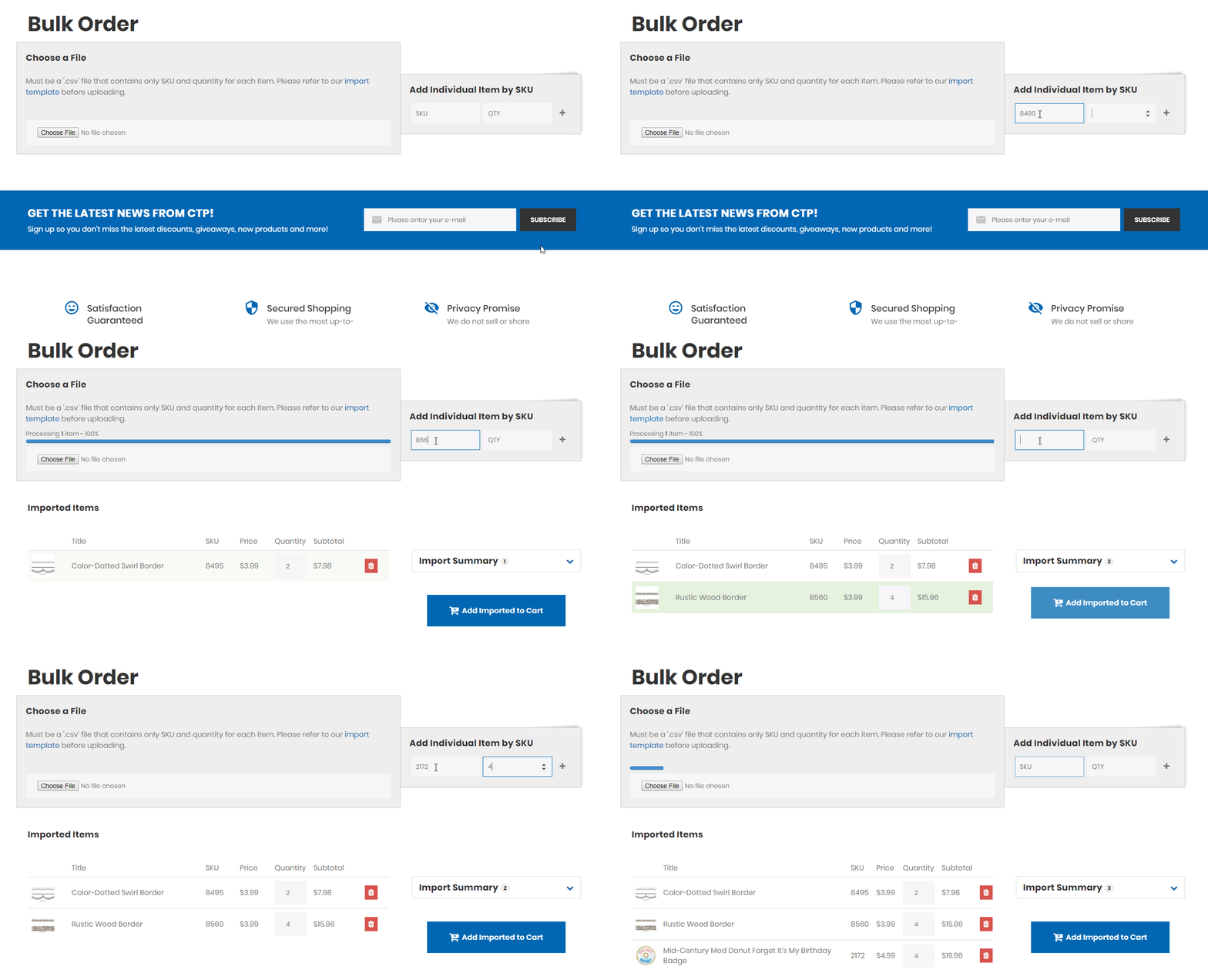
You can also add items line-by-line either before or after your csv import. Simply type the product SKU into the input, press Tab, type a quantity, and hit Enter to add that product to the list. Do not include the "ctp-" prefix:
Import Errors
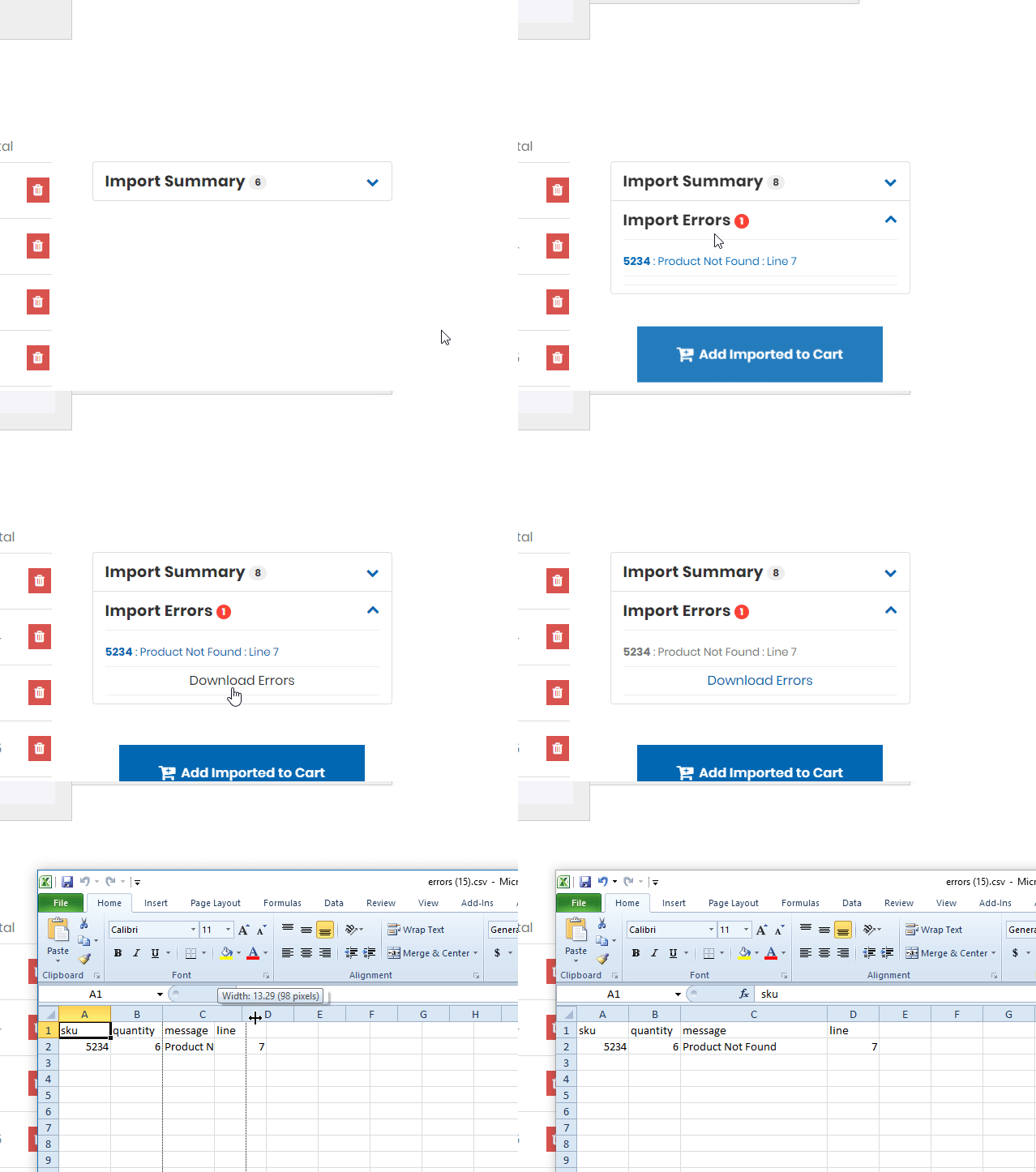
If a product SKU within your csv import is not found on the site, or there is a missing quantity, you will see a new error listed in the right side bar under "Import Errors". After all the items in your import have been processed, you will have the opportunity to download a csv of all the rows that failed:
Adding to Cart
The final step is to add all your imported products to your cart. Once the import process has completed, you will see the "Add Imported Items to Cart" button. Once added, you will then see a confirmation and a link that will bring you to the cart to complete the checkout process.

Support
Should you have any questions about using the bulk order page, email us at customer.service@creativeteaching.com, call us at 800-444-4287 or chat with us online!
0 comments